
How to Translate CSV Files with AI
Why CSV for Localization?
Not everything that needs translating lives in a code project. Product catalogs, marketing copy, app store descriptions, help center articles, spreadsheet-based content — a lot of real-world text lives in tables.
CSV is the simplest way to organize that. One column for keys, other columns for languages. No special format, no tooling required to create it — any spreadsheet app works.
Foxalize reads your CSV, auto-detects which columns are languages, and translates them with AI. If your content is in a spreadsheet, it's ready for Foxalize.
How to Structure Your CSV
Your CSV just needs one column named key or id (case doesn't matter, position doesn't matter). Language columns are detected automatically by name or code.
| key | Source (optional) | English | German |
|---|---|---|---|
| btn_submit | Submit | Submit | Absenden |
| btn_cancel | Cancel | Cancel | Abbrechen |
A few things worth knowing:
Language column headers are flexible. You can use full names (English, German), ISO codes (en, de), native names (Deutsch, deu) — Foxalize recognizes all of them across 88 supported languages.
Source column is optional. If you don't have a separate Source column, Foxalize uses the column that matches your project's source language.
Values can be anything. Short button labels, single words, or entire paragraphs of marketing copy. CSV rows don't have a length limit, and neither does Foxalize's translation.
How to Translate Your CSV in Foxalize
Same simple flow as any other format:
1. Create a Project
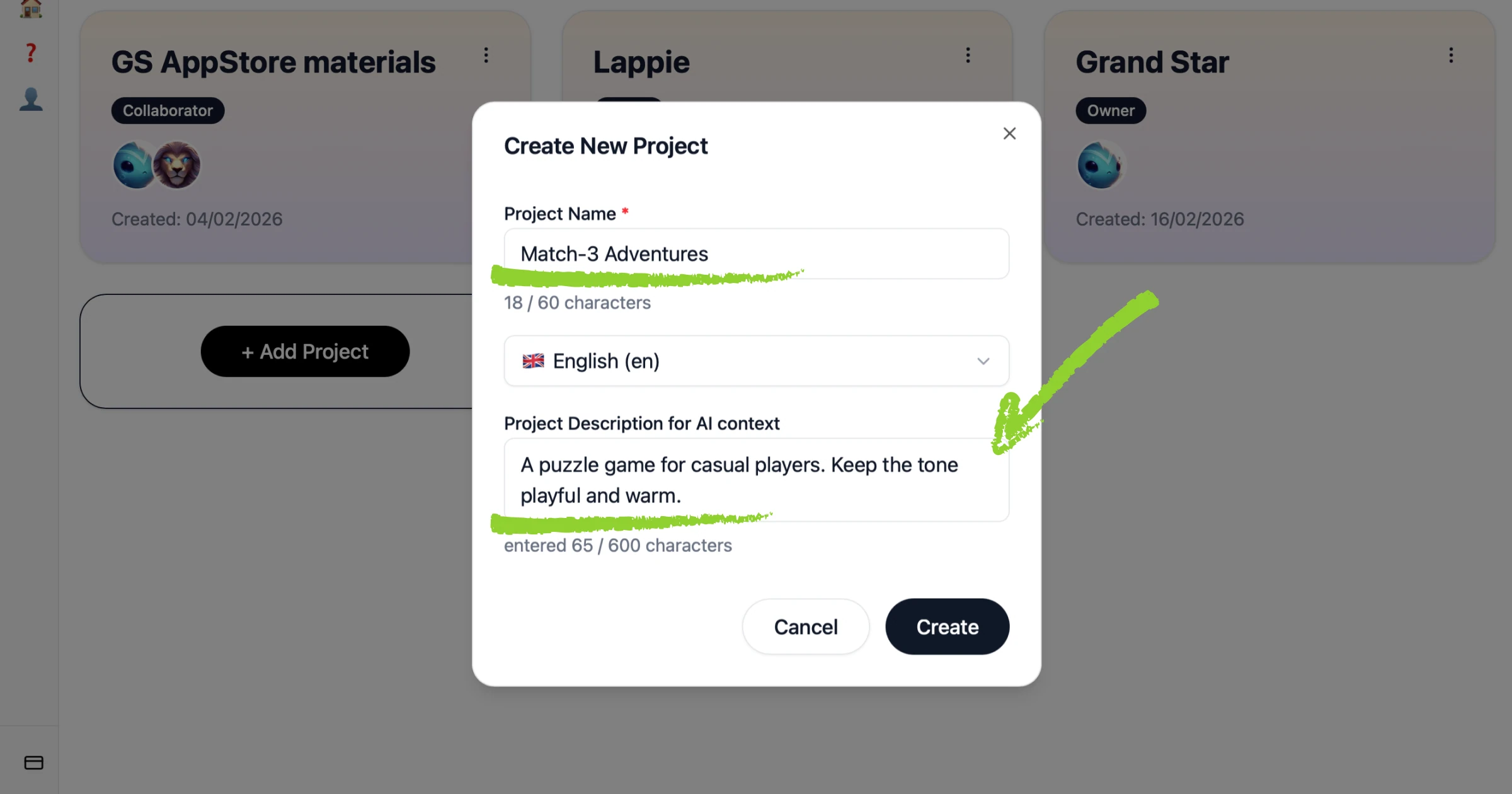
Start a new project and give it a name. In the description, tell the AI what this content is for — your product, your audience, the tone. This context shapes every translation.
For example: "E-commerce product descriptions. Tone: clear, trustworthy, no hype."
2. Upload Your CSV
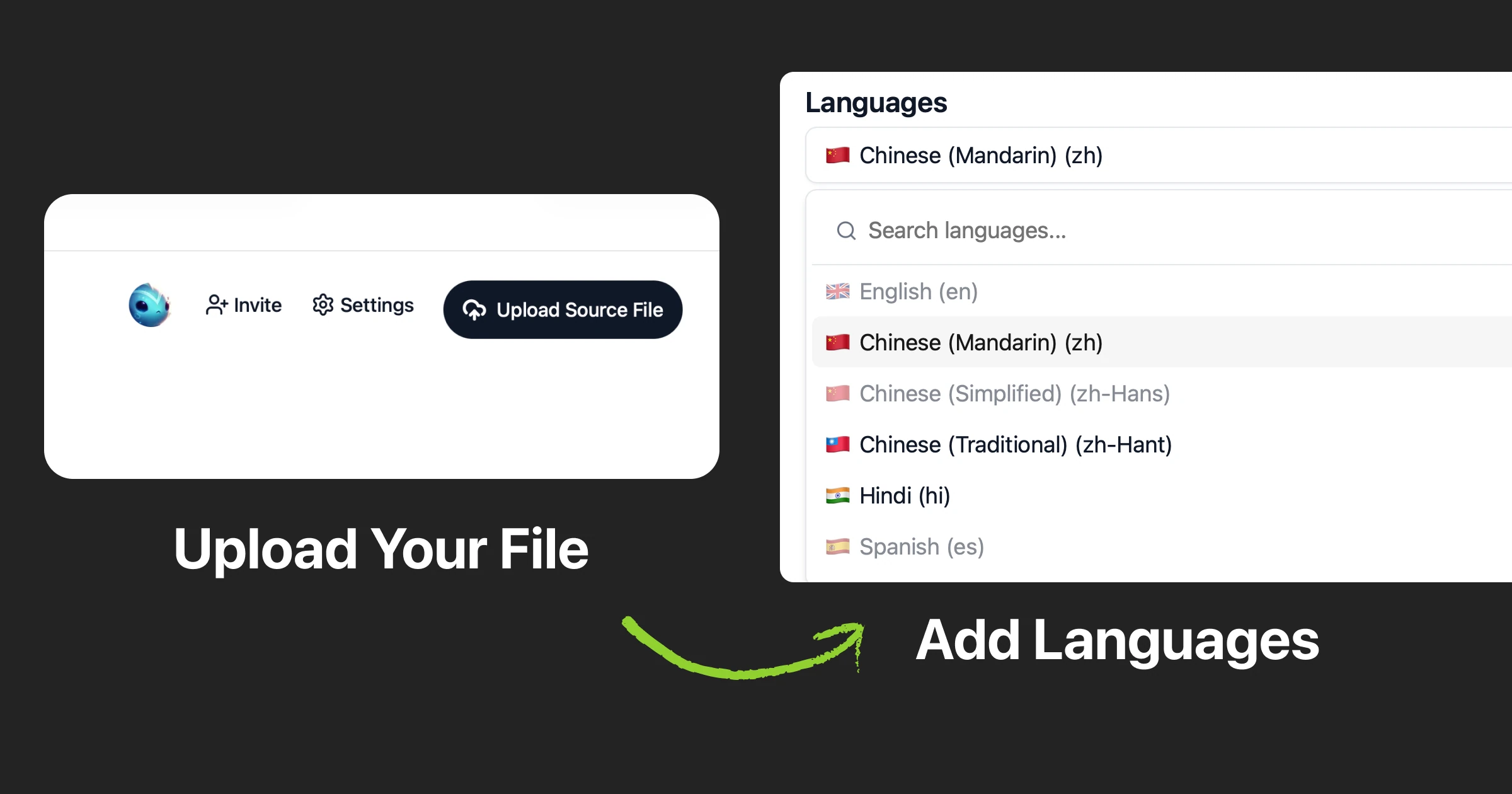
Drag your .csv file in or click to upload. Foxalize detects the key column and language columns automatically. No mapping step, no column configuration — it reads the headers and figures it out.
If you're exporting from Google Sheets, Excel, or Numbers, just save as CSV and upload.
3. Add Your Target Languages
If your CSV already has empty language columns, Foxalize picks them up. Otherwise, add the languages you want — they'll appear as new columns in your translated file.
4. Translate with AI
Hit translate. The AI uses your project description as context, so translations fit the content — product descriptions sound like product descriptions, UI labels stay concise, help text stays helpful.
Placeholders and variables in your values are preserved automatically. The AI won't break your {product_name} or {{price}} references.
5. Review (and Invite Your Team)
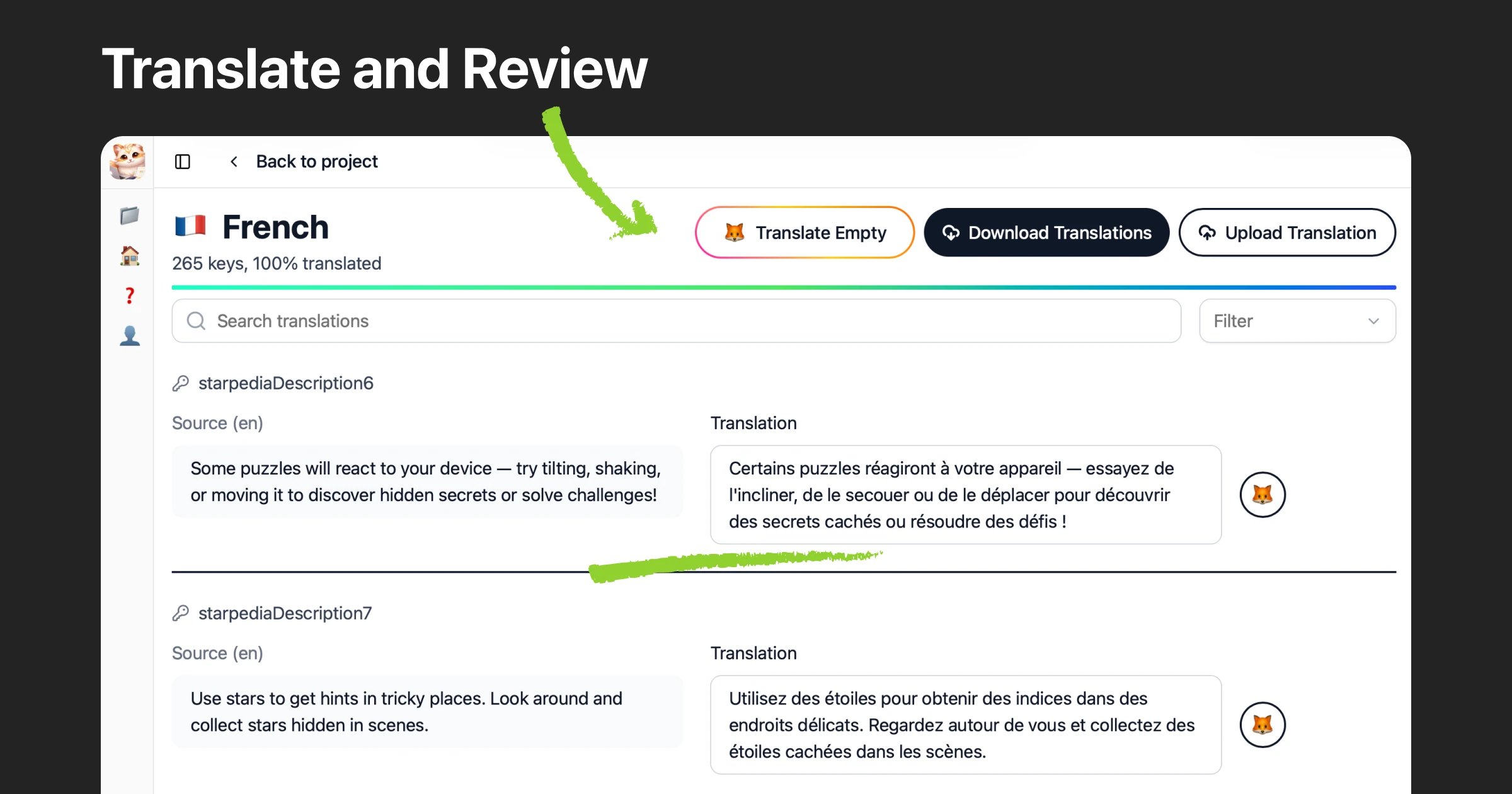
Translations appear alongside your source text. Edit directly, or invite teammates and native speakers to review. Especially useful for marketing content where tone matters more than literal accuracy.
6. Download
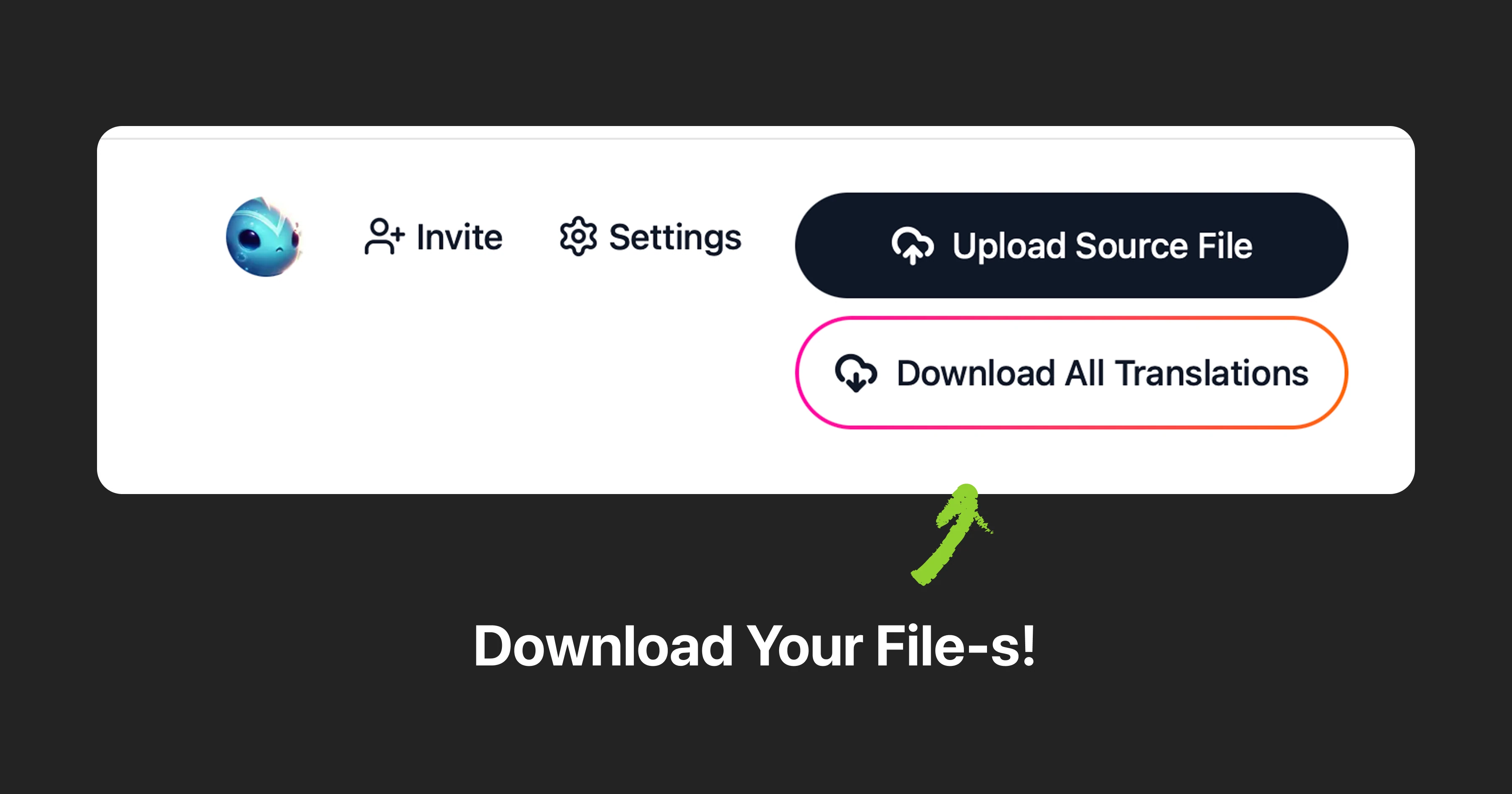
Export your translated CSV. The structure matches what you uploaded — same columns, same key order, just with translations filled in. Drop it back into whatever system you're feeding from that spreadsheet.
Wrapping Up
If your content lives in a spreadsheet, you're already one step away from having it translated. No format conversion, no developer setup — just a CSV with a key column and your languages as headers.
Foxalize is still evolving, and we're building features based on what people actually need. Got a workflow that doesn't quite fit yet? We'd love to hear about it.
Try it free at foxalize.ch — feedback always welcome at contact@foxalize.ch.
Happy localizing! 🦊
— Caramel Cloudfox