
How to Translate JSON Files with AI
What Is JSON Localization?
If your app, website, or content uses JSON files to store text, localization means translating those files into other languages while keeping the structure intact. That text could be short UI strings like button labels and error messages — or entire paragraphs of blog content, product descriptions, help articles. JSON doesn't care about length, and neither does Foxalize.
The tricky part isn't the translation itself. It's that JSON comes in many shapes: flat key-value pairs, nested objects, arrays, files with metadata. Most tools either expect one specific format or need you to configure everything manually before anything works.
Foxalize auto-detects your JSON structure. Upload your file, and it figures out the rest.
JSON Formats Foxalize Supports
You don't need to convert or restructure anything. Just upload — Foxalize detects the format automatically.
| Format | Structure | Example |
|---|---|---|
| Flat | Simple key-value pairs | { "btn_submit": "Submit" } |
| Nested | Keys grouped inside objects | { "buttons": { "submit": "Submit" } } |
| With metadata | Value + description per key | { "btn_submit": { "message": "Submit", "description": "..." } } |
| Array | List of key-value objects | [{ "key": "btn_submit", "value": "Submit" }] |
| Multi-language | All languages in one file | { "en": { ... }, "de": { ... } } |
If you're not sure which format your file uses — that's fine. Foxalize handles it.
How to Translate Your JSON in Foxalize
The whole flow takes about two minutes. Here's what it looks like:
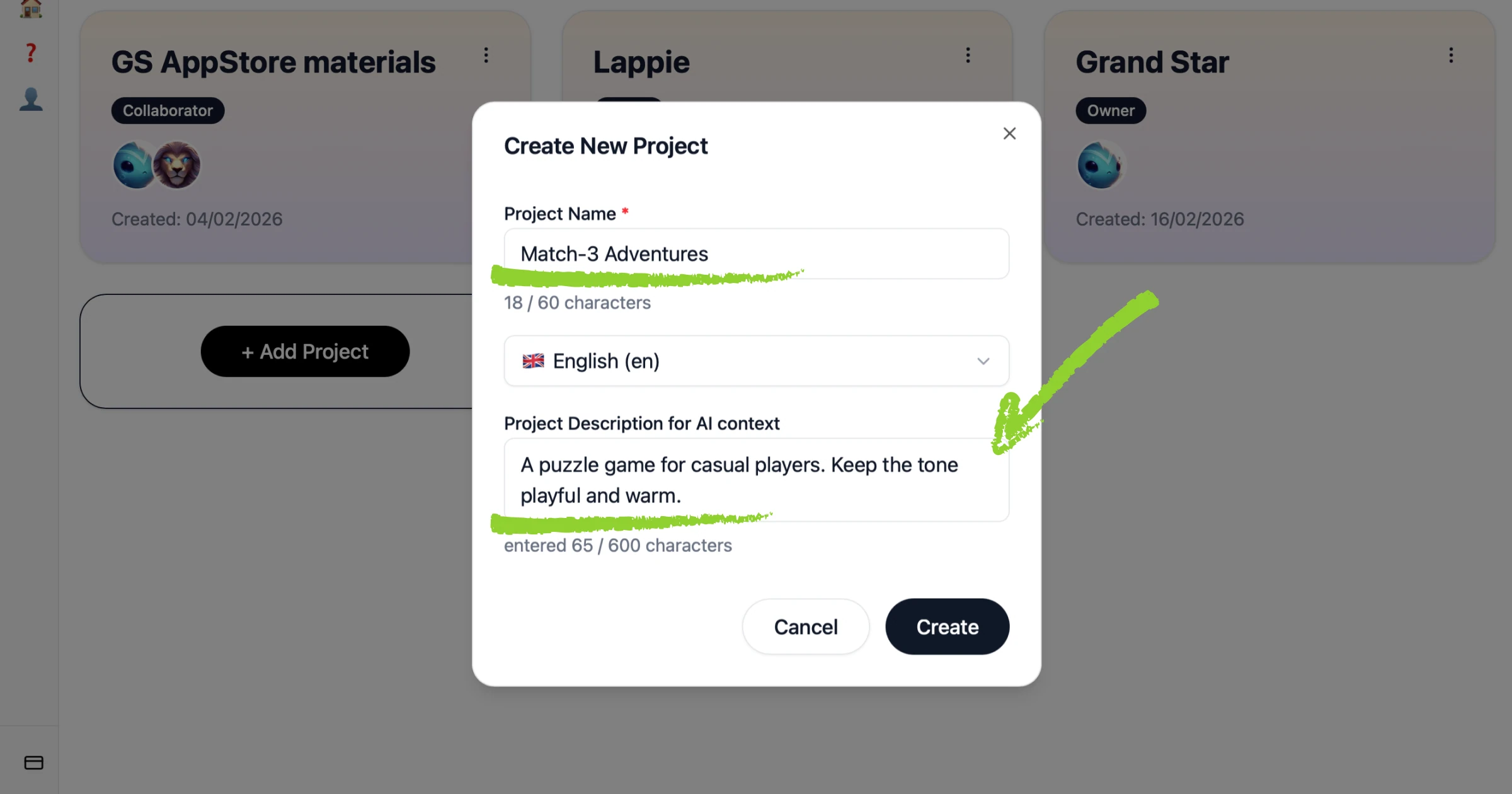
1. Create a Project
Start a new project and give it a name. In the description field, add context for the AI — what your app does, who it's for, any tone preferences. This helps the AI make smarter translation choices instead of going word-by-word.
For example: "A puzzle game for casual players. Keep the tone playful and warm."
2. Upload Your JSON File
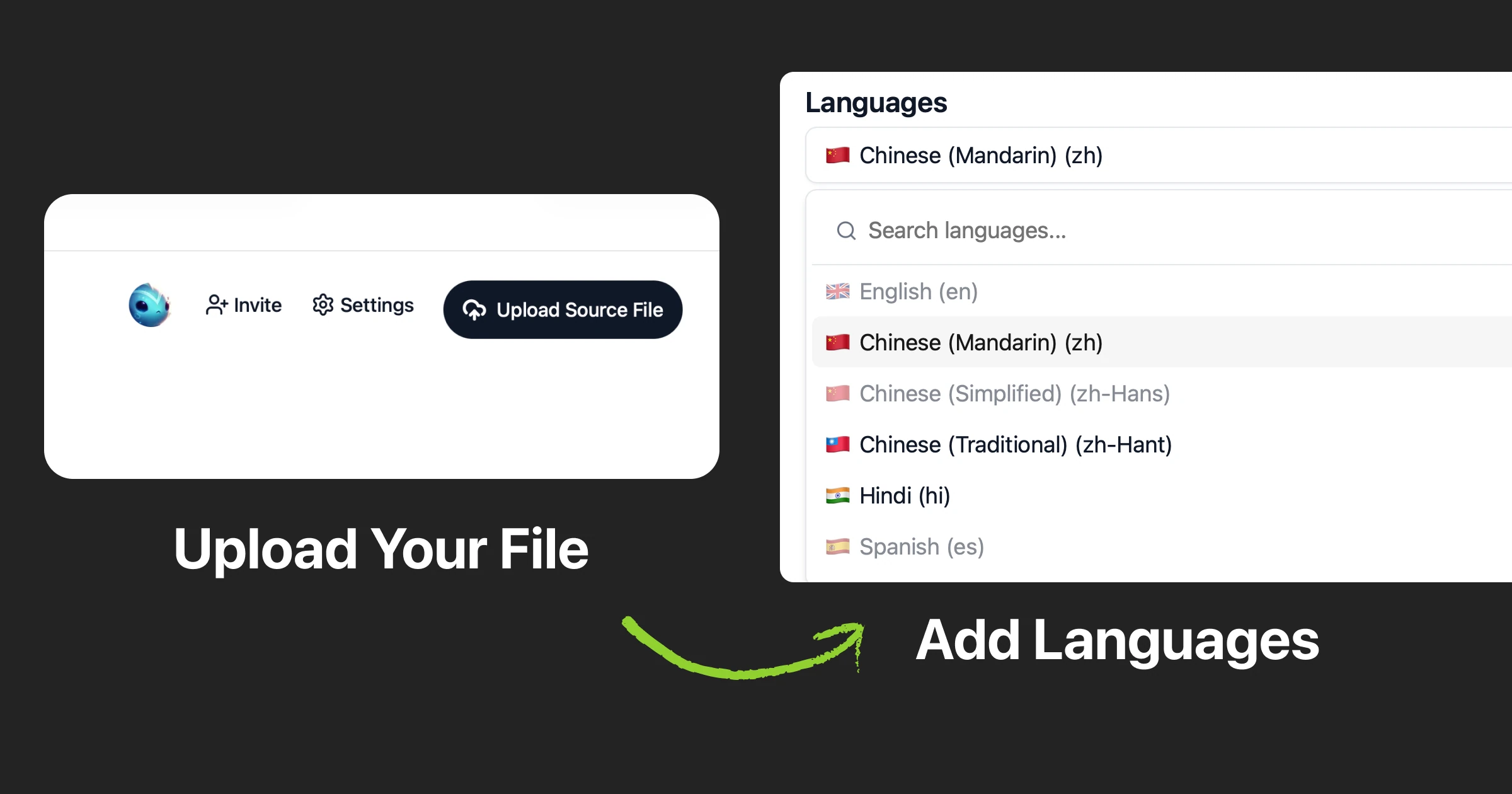
Drag your file in or click to upload. Foxalize reads the structure and shows your strings in a clean editor view. No config files, no format selection dropdowns — it just detects what you've got.
3. Add Your Target Languages
Pick the languages you want to translate into. Add one, add ten — same process either way.
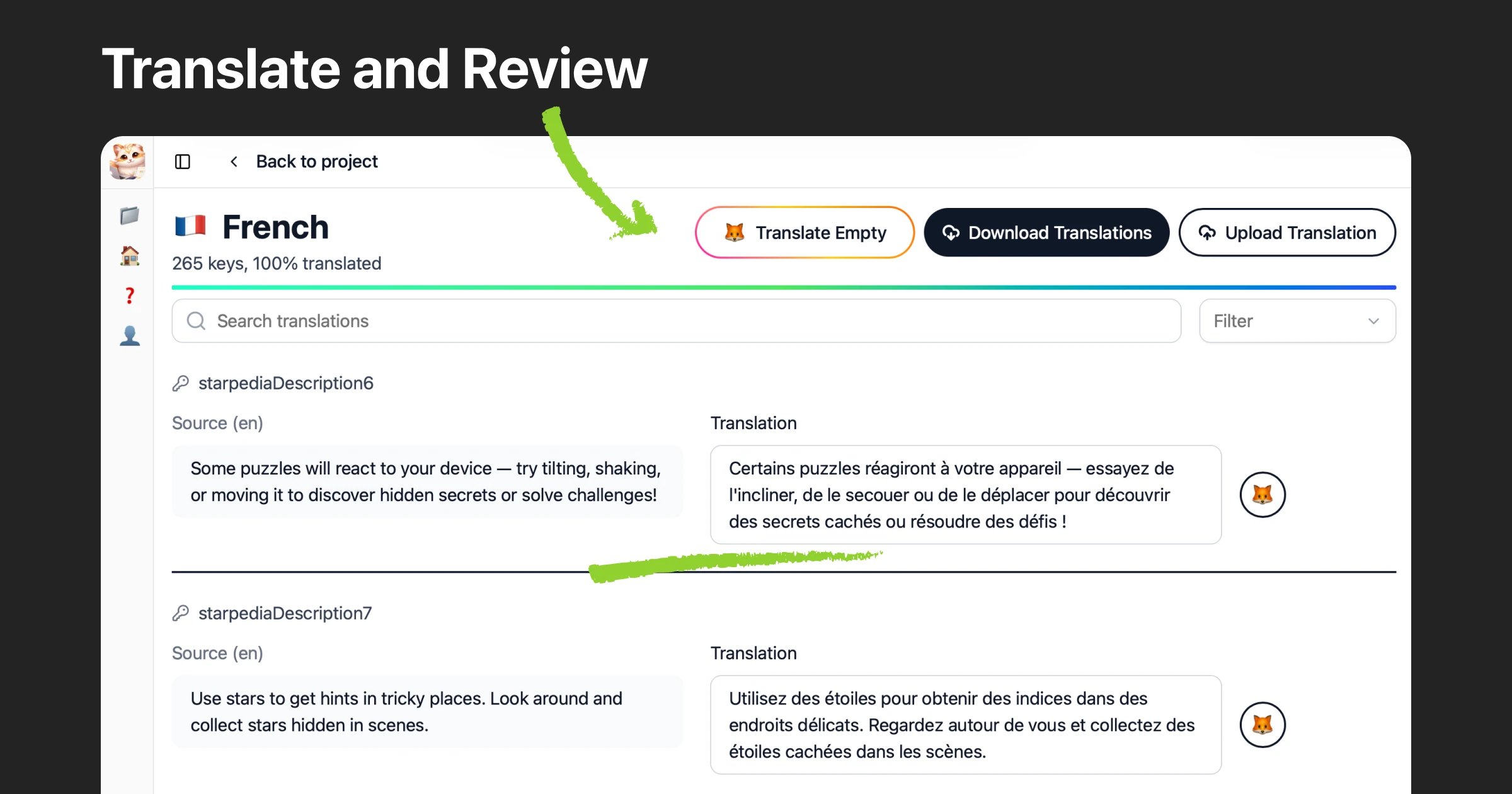
4. Translate with AI
Hit the translate button. The AI uses your project description as context, so translations aren't just literal — they make sense for your product. Button labels stay short. Error messages stay clear. Longer content like descriptions or help text keeps its natural flow in the target language.
Placeholders and variables — things like {username}, {{count}}, or %d — are preserved automatically. You don't need to mark them or worry about the AI rewriting your template syntax.
5. Review (and Invite Your Team)
Translations appear right alongside your source text. You can review and edit anything directly. If you work with translators or native speakers, invite them to the project — they can review and refine without needing their own account setup.
This step is optional if you're moving fast, but it's there when quality matters.
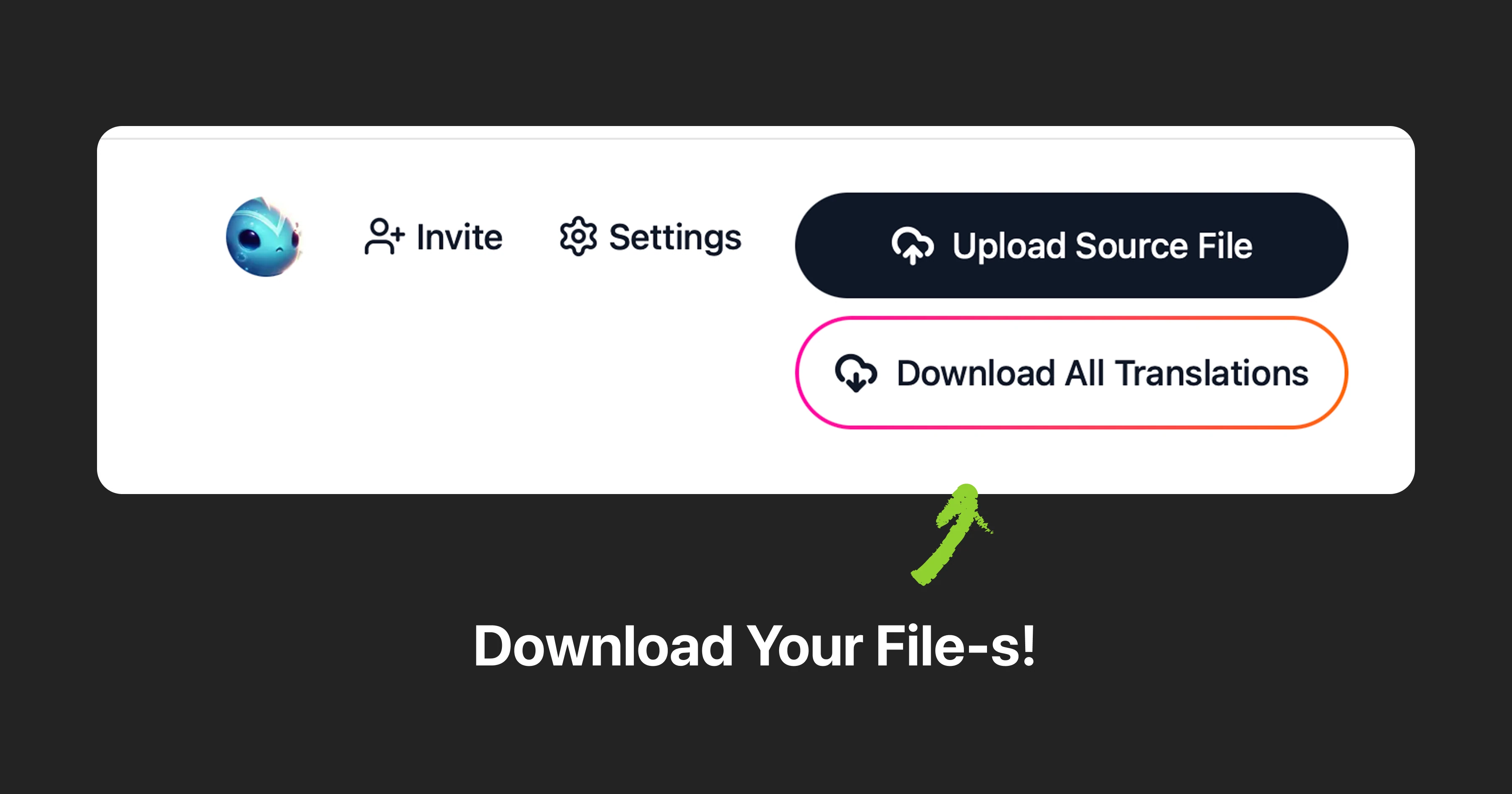
6. Download
Export your translated JSON files and drop them back into your project. The structure stays exactly the same as what you uploaded — just in new languages.
Wrapping Up
JSON localization doesn't need to be a pipeline of scripts, config files, and manual copy-pasting. Upload your file, tell the AI what your product is about, pick your languages, and translate.
Foxalize is still evolving, and we're adding new features based on what people actually need. If something's missing or could work better — we'd love to hear it.
Try it free at foxalize.ch — and if you have feedback, reach out at contact@foxalize.ch.
Happy localizing! 🦊
— Caramel Cloudfox