
How to Translate XLIFF Files with AI
What Is XLIFF?
XLIFF (XML Localization Interchange File Format) is the standard format for passing translatable text between tools. If you're building an iOS or macOS app, you've probably already seen it — Xcode exports your localizable strings as XLIFF when you go to Product → Export Localizations.
But XLIFF isn't just an Apple thing. Any development workflow that handles structured translations can use it. The format wraps your source text and its translations together in one file, with metadata like notes, context, and state tracking.
The catch: there are two versions — XLIFF 1.2 and XLIFF 2.0 — and they're structured differently enough that most tools only support one, or make you specify which you're uploading. Foxalize auto-detects the version. You just upload.
XLIFF 1.2 vs 2.0
Both versions do the same job — carry source and target text for translation — but they're organized differently under the hood.
| XLIFF 1.2 | XLIFF 2.0 | |
|---|---|---|
| Used by | Many localization platforms, older toolchains | Xcode (default export), modern tooling |
| Structure | <file> → <body> → <trans-unit> | <file> → <unit> → <segment> |
| Source/target | Attributes on <trans-unit> | Nested inside <segment> |
| Notes & metadata | <note> elements, context groups | <notes>, <originalData> |
You don't need to remember any of this. Foxalize reads whichever version you upload and handles it correctly — structure, notes, states, and all. No settings to toggle.
How to Translate Your XLIFF in Foxalize
Same simple flow whether it's 1.2 or 2.0:
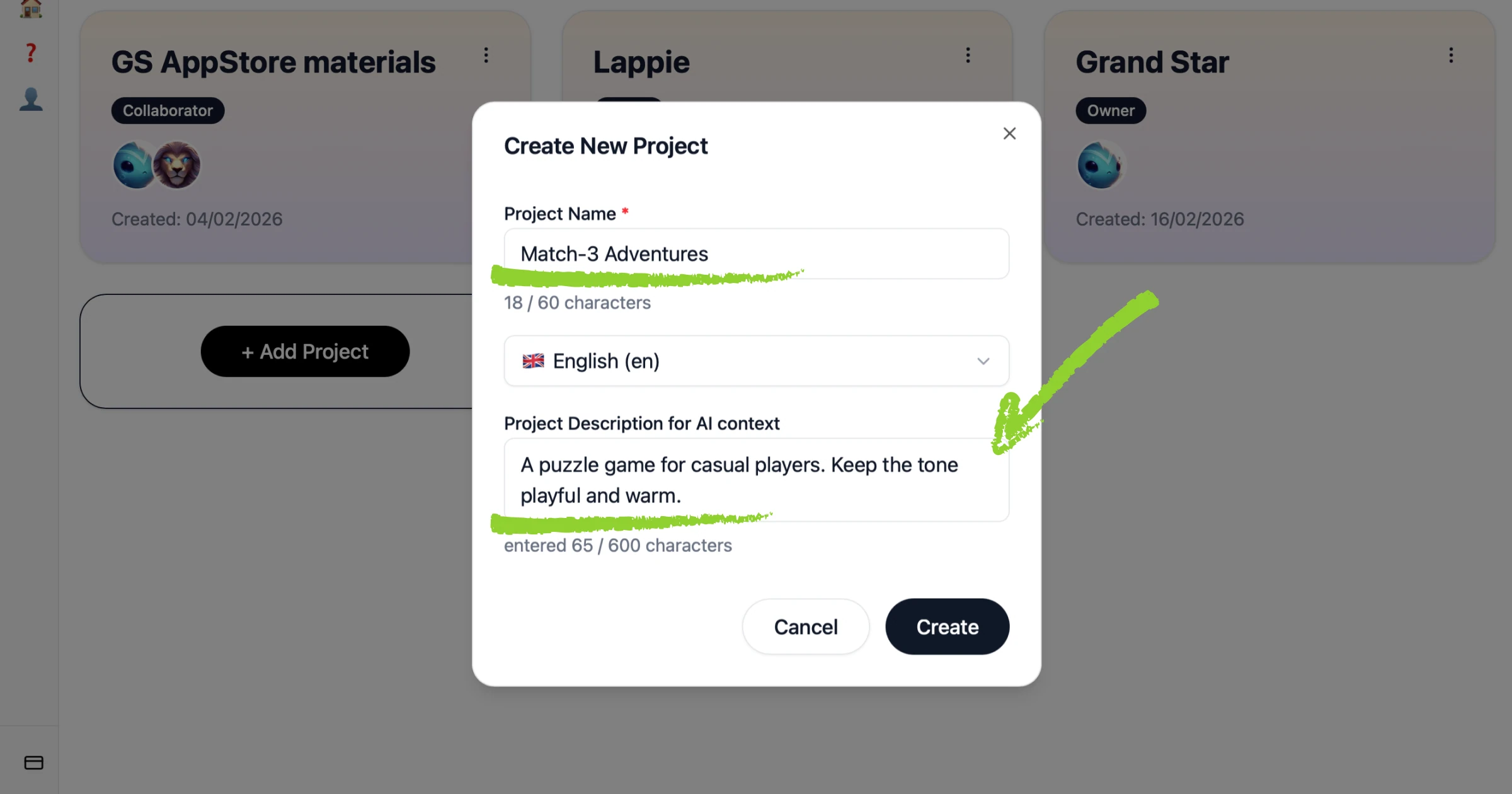
1. Create a Project
Start a new project and give it a name. Use the description field to give the AI context — what your app does, who it's for, the tone you want. This is what turns generic translations into ones that actually fit your product.
For example: "A fitness tracking app for beginners. Keep the language encouraging and simple."
2. Upload Your XLIFF File
Drag your .xliff file in or click to upload. Foxalize detects the version, parses the structure, and shows your translatable strings in a clean editor. Notes and context from your file are preserved and visible — the AI uses them too.
Coming from Xcode? When you do Product → Export Localizations, Xcode gives you an .xcloc package — not an .xliff directly. Right-click the .xcloc file, choose Show Package Contents, and you'll find the .xliff inside a subfolder. That's the file you upload to Foxalize.
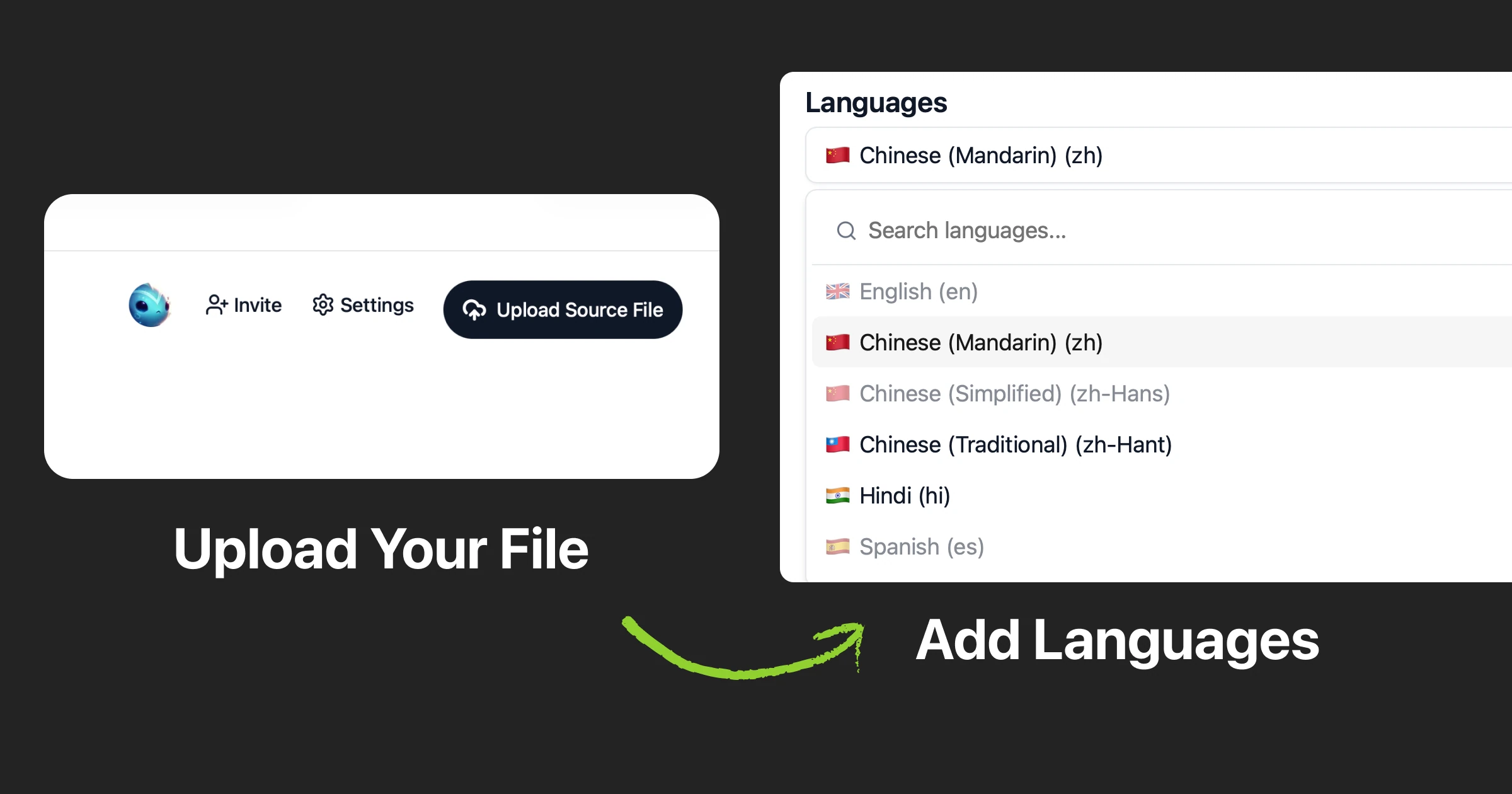
3. Add Your Target Languages
Pick the languages you need. If your XLIFF already contains target language info, Foxalize picks that up. Otherwise, just add what you want.
4. Translate with AI
Hit translate. The AI uses your project description and any notes from the XLIFF itself to produce translations that make sense in context — not just word-for-word replacements. Short UI labels stay short. Longer strings like descriptions or onboarding text keep their natural tone.
Placeholders and format specifiers — %@, %d, {count}, {{name}} — are preserved automatically. The AI won't rewrite or reorder your variables.
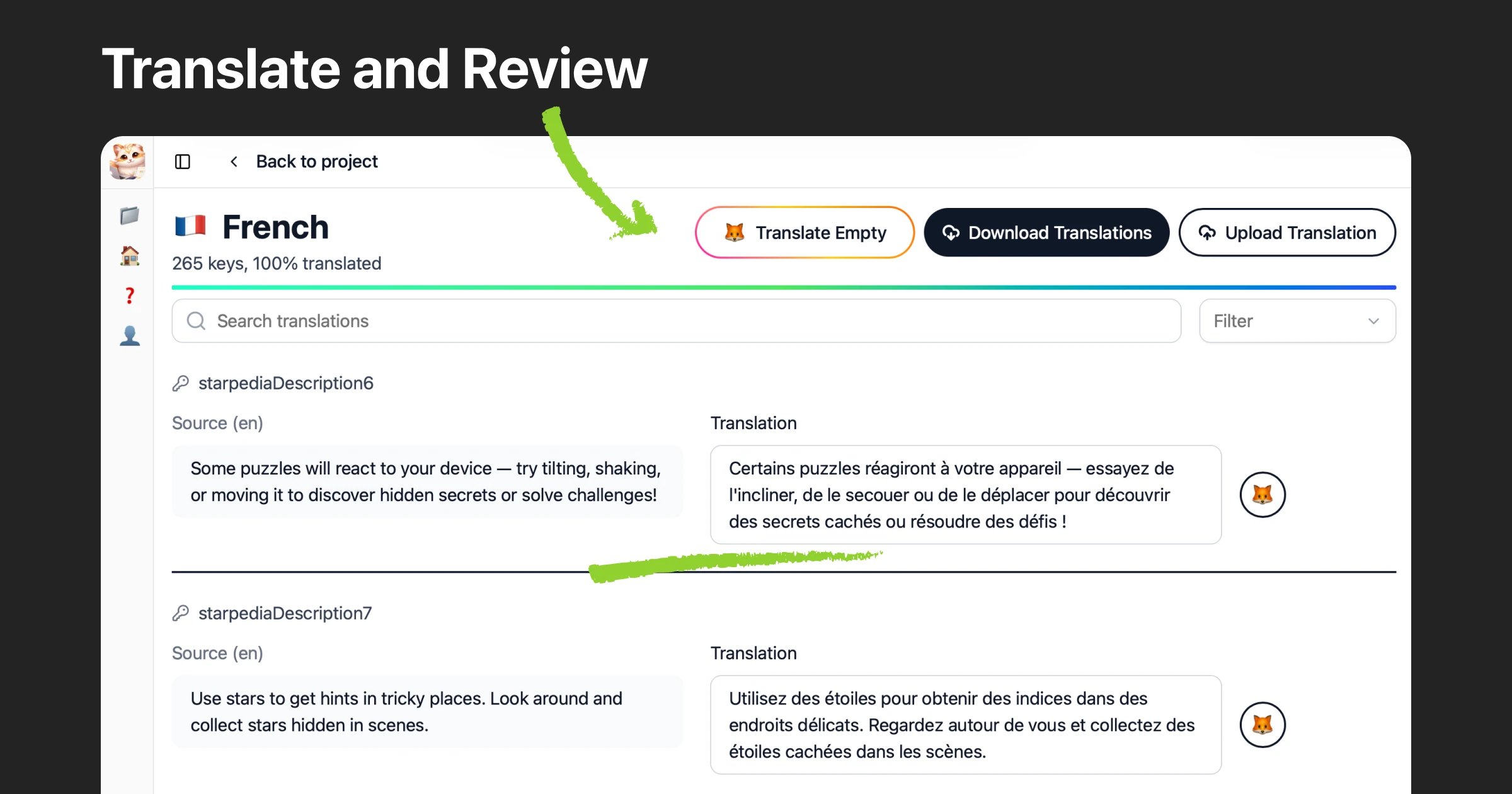
5. Review (and Invite Your Team)
Translations show up alongside your source text. Edit anything directly, or invite translators and native speakers to review. They can refine translations in the project without any complicated setup.
Optional step — but useful when you want a native eye on it before shipping.
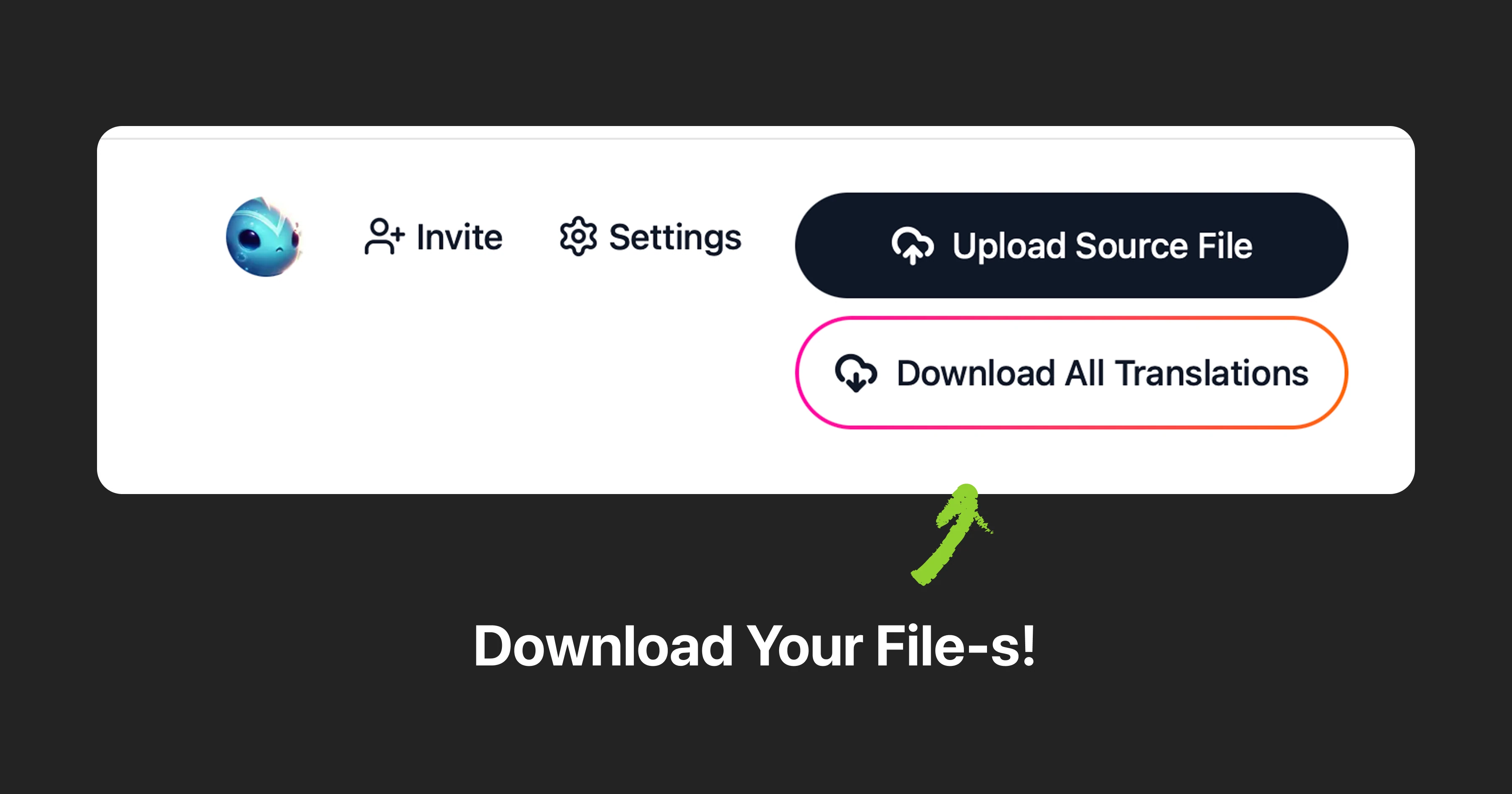
6. Download
Export your translated XLIFF and bring it back into your project. For Xcode: Product → Import Localizations. The file structure matches exactly what you exported — same version, same format, just translated.
Wrapping Up
XLIFF is the standard for a reason — it's structured, portable, and works across tools. But translating it shouldn't require you to wrestle with XML or configure version-specific settings. Upload, give the AI some context, translate, and get your file back.
Foxalize is still evolving, and we're building based on what people actually need. If you hit a snag or have ideas — we'd love to hear from you.
Try it free at foxalize.ch — feedback always welcome at contact@foxalize.ch.
Happy localizing! 🦊
— Caramel Cloudfox